
You spend hours on the web every day. A few simple habits make that time far safer — and they pull together ideas from the whole course.
What is it?
Secure browsing is the set of habits and settings that protect you while using websites: recognising safe connections, avoiding dangerous sites and downloads, and limiting what you share.
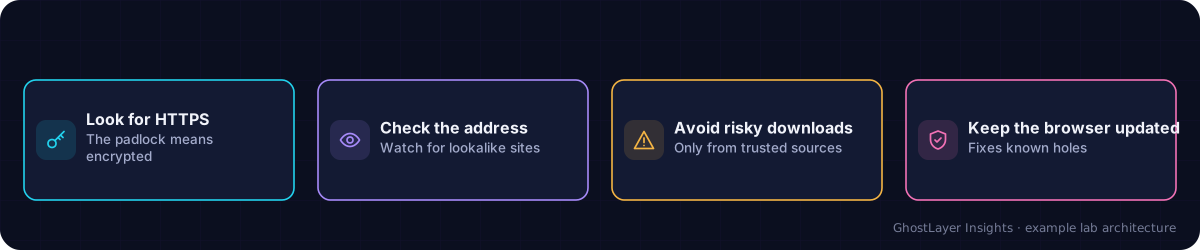
Select any component in the diagram to read what it does.
Text description of this diagram
Simple habits keep you safe on the web.
Why is it important?
The web is where most of us meet phishing, malware downloads, and fake sites. Good browsing habits are a cheap, powerful layer of defence that you control entirely yourself.
How does it work? — the key habits
- Check for HTTPS — the padlock means the connection is encrypted. Never enter passwords or card details on a plain HTTP page.
- Look at the web address — attackers use lookalikes like
paypa1.com. Read it carefully. - Be careful with downloads — only download from official, trusted sources.
- Keep your browser updated — it is your main window to the internet.
- Think before you share — be cautious with personal information on unfamiliar sites.
HTTPS means the connection is private — it does not mean the website itself is honest. A scam site can still use HTTPS. Always combine it with checking the address and your own judgement.
A real-world example
A search result leads to a login page that looks perfect, but the address bar reads faceb00k-login.com instead of the real site. A user in the habit of reading the address spots the fake, closes the tab, and goes to the site directly — avoiding handing their password to an attacker.
Check what you learned
What does the padlock / HTTPS tell you, and what does it NOT tell you?
It tells you the connection is encrypted and private; it does not tell you the website itself is honest or trustworthy.
Why read the web address carefully before logging in?
Attackers register lookalike addresses (like paypa1.com) to trick you into entering your details on a fake site.
Key takeaways
- Look for HTTPS, but remember it only protects the connection, not the site’s honesty.
- Read web addresses carefully to spot lookalike scam sites.
- Download only from trusted sources and keep your browser updated.